
Turn your browser's graphics back on
Some of our free pet games use your browser's graphics helper (often called "graphics acceleration" or "hardware acceleration") to draw smooth, moving pictures. When that helper is turned off, the game cannot draw itself and you see an error instead. The good news: this is a browser setting, not a problem with your computer or with our site, and turning it back on takes about a minute. Pick your browser below.
Not sure which browser you have? Look at the icon you click to get online. A colorful circle is usually Chrome. A blue-green swirl is usually Microsoft Edge.
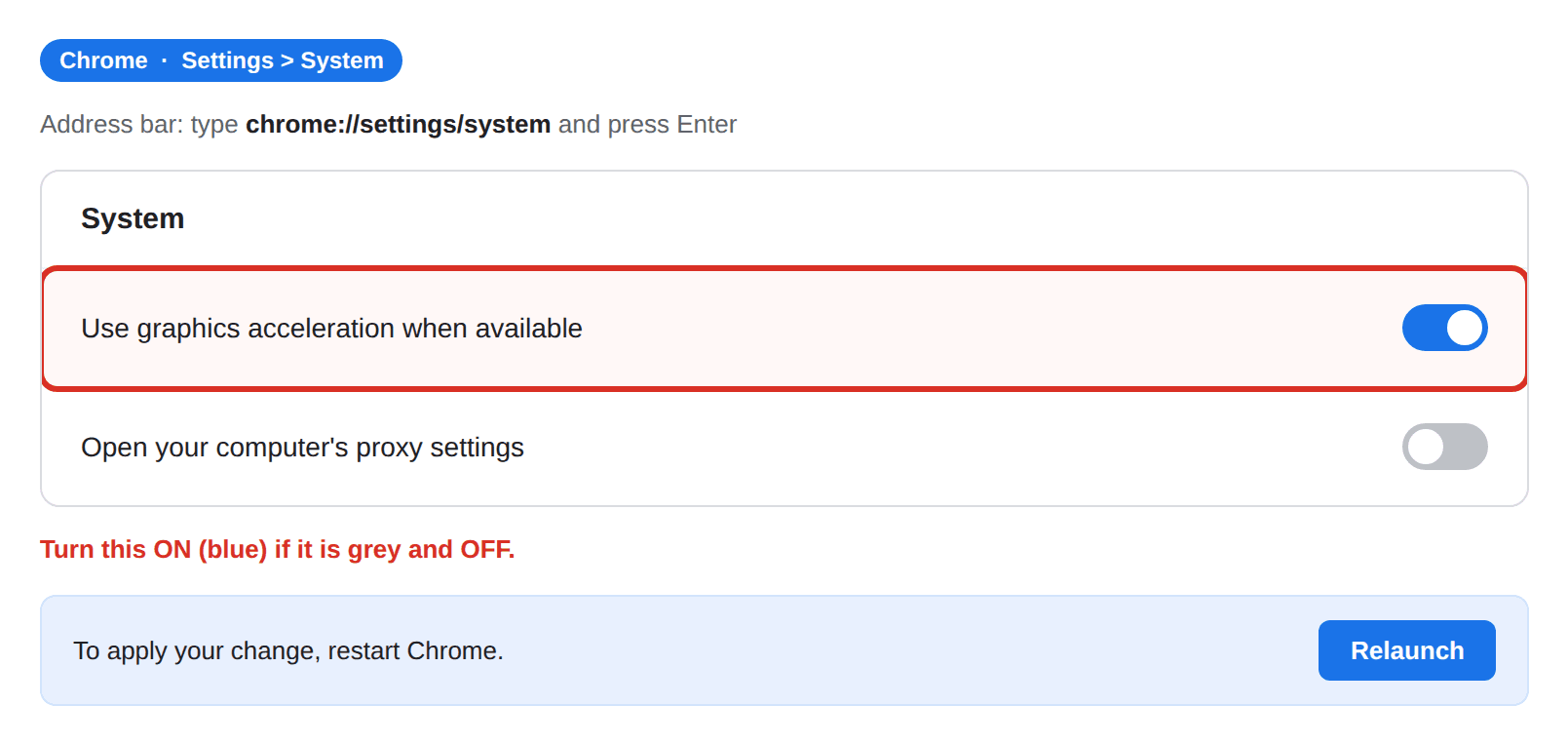
Chrome (Windows and Mac)
- Click the three dots in the top right corner, then click Settings.
- Click System in the menu on the left. Quick way: tap to copy then click the address bar at the top, paste, and press Enter. (Browsers do not let a website open this page for you, so we copy the address instead.)
- Find the line that says Use graphics acceleration when available. Click the switch so it turns blue (on).
- Click the Relaunch button that appears. Chrome will close and reopen.
- Come back and open the game again.
Microsoft Edge (Windows and Mac)
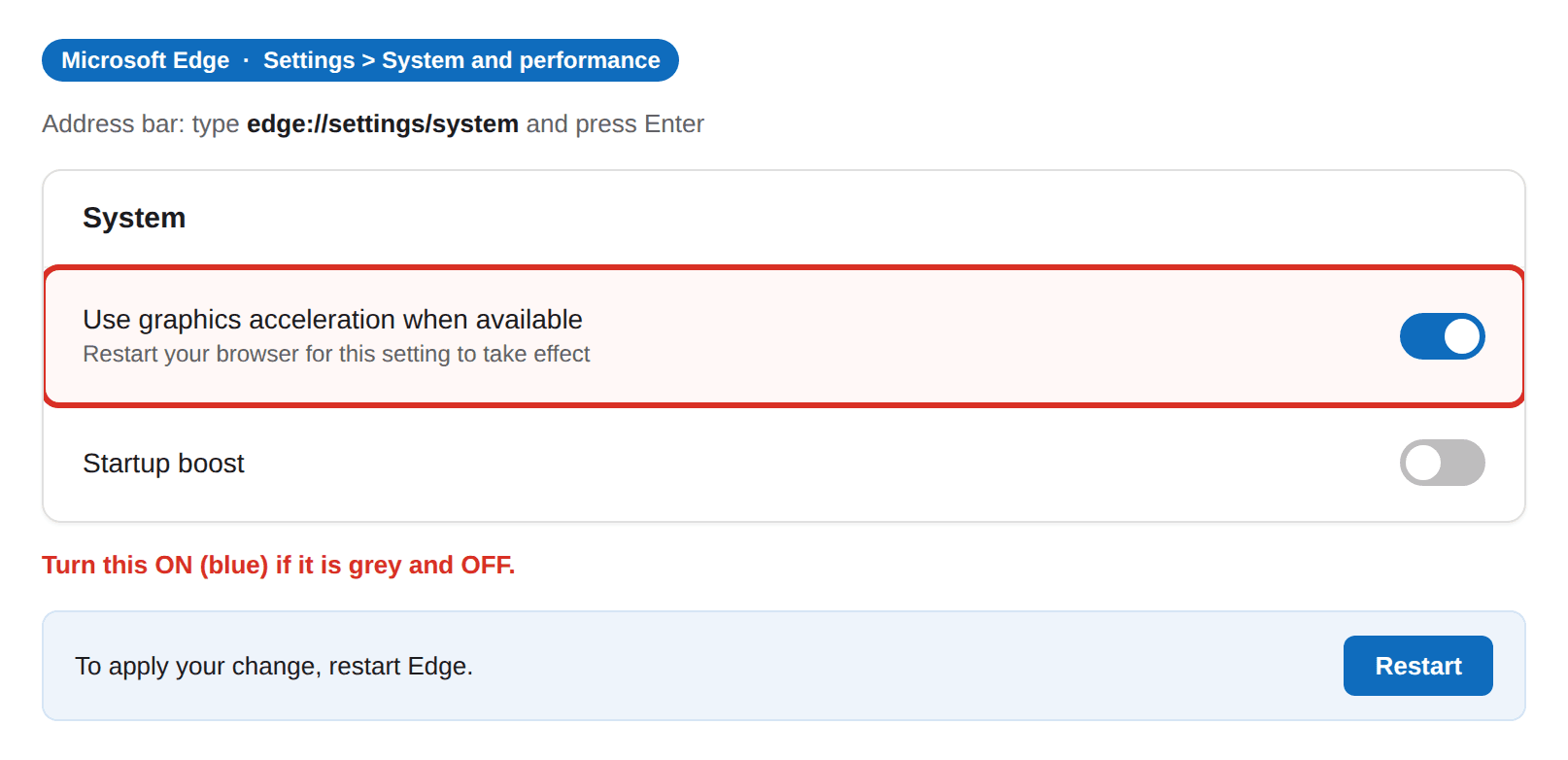
- Click the three dots in the top right corner, then click Settings.
- Click System and performance in the menu on the left. Quick way: tap to copy then click the address bar, paste, and press Enter.
- Find the line that says Use graphics acceleration when available. Click the switch so it turns on.
- Click the Restart button that appears. Edge will close and reopen.
- Come back and open the game again.
Brave
Brave works like Chrome. tap to copy Paste that in the address bar, turn on Use graphics acceleration when available, and restart Brave. Brave also has a shield that can block games. If the game still will not load, click the lion icon in the address bar while you are on the game page, turn the shields down for that page, and reload.
On a phone or tablet?
There is nothing to turn on. Phones and tablets keep this turned on all the time, so this is almost never the reason a game will not load. Try closing and reopening your browser, make sure it is up to date, or open the game on a laptop or desktop computer.
Still not working? A few more things to try
- Update your browser. An old browser is a common cause. In Chrome: three dots, then Help, then About Google Chrome. It updates on its own; click Relaunch if it asks. In Edge: three dots, then Help and feedback, then About Microsoft Edge, then Restart if it asks.
- Update your graphics drivers (Windows only). This fixes the most stubborn cases. Open Settings, then Windows Update, and install anything waiting. If you are comfortable, you can also get the newest driver from your computer or graphics maker (Intel, NVIDIA, or AMD). On a Mac, just keep macOS up to date.
- Pause ad blockers or privacy add-ons. If you use one, turn it off for this page and reload. They can block the game.
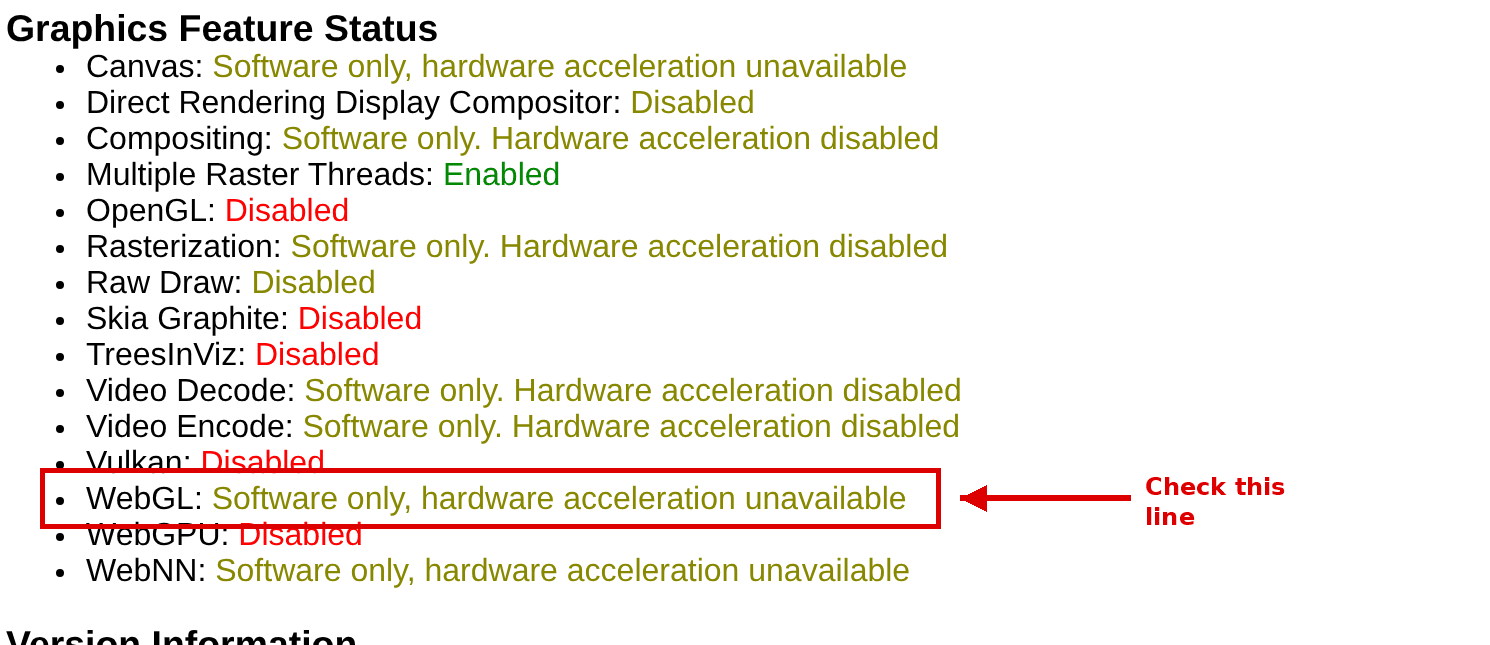
- Check the graphics status (optional, for the curious). Copy tap to copy (or tap to copy), paste it in the address bar, and press Enter. In the top list, find the WebGL line. If it says Hardware accelerated, you are set. If it says Software only or Unavailable, turn the setting above back on and update your graphics drivers.
Still stuck?
If you have tried these and the game still will not load, we are happy to help. Contact us and tell us which browser you are using and what you see. We will get you playing. In the meantime, some of our games work without this setting, so you can head back to the arcade and pick another one.